How to Shrink a Thin VMDK on ESXi 5.0
I always like to keep my template small. This means the files inside the VM, but the size of the VMDK as well. The reason for this is that I often need to download the VM to USB storage of whatever and transfer it to remote sites.
So I wanted to shrink my VMDK size as much as possible. After cleaning up the VM itself and running sdelete, it’s time to shrink the VMDK.
First let’s review the actual usage of it:
The virtual disk size can be seen with ls –lh *.vmdk. In my example, I have a 40 GB virtual size.

To see the ‘real’ size of the vmdk, run du –h *.vmdk. This gives us a 36 GB size (while the VM itself actually uses about 10 GB).
vSphere 5.1 Release Date leaked? (Updated)
VMware asked me to pull the post about the release date.
So I guess you all have to wait for VMware to release some more info (and not by accident like they did yesterday  ).
).
Enable VASA on HP P4000 Lefthand SAN with vSphere 5
On of the new features of vSphere 5 is VASA. This allows vSphere to read the capabilities of your underlying SAN storage. With this information, you can do all kinds of fancy stuff afterwards (Profile-Driven Storage, …)
For HP, it is supported on P4000 (Lefthand), P6000 (EVA) and P9000 (XP). For VASA to function, you will need to install an additional component from HP called HP Insight Control Storage Module for vCenter. The current version at moment of writing is 6.3.1. And yeah, it’s free 🙂
The architecture looks like this:

In this example, we will install it on a seperate server called VASA.labo.local in our Ultimate vSphere Lab. I already have a P4000 VSA running in that lab on a seperate iSCSI network.
Bug in HP Agents 8.70 causes HP DL580 G7 running ESX to reboot on PSU failure [SOLVED]
We discovered a bug in HP Agents 8.70 installed on ESX 4.1 running on HP ProLiant DL580 G7 servers.
Those machines come equipped with 4 PSUs. When the power is lost of 2 PSUs at the same time, a reboot is triggered by the HP Agents. This causes all VMs on that host to crash (HA will restart them on another host if configured properly). This reboot makes no sense as the system is perfectly capable of running on 2 PSUs.
Install vSphere in VMware Workstation using EFI instead of a BIOS
(U)EFI is the next generation of BIOS. When you install ESXi 5.0 on VMware Workstation 8, it just uses a regular BIOS.
It is however possible to use EFI instead of BIOS.
The vSphere Installation and Setup guide states that you shouldn’t change the boot type from BIOS to EFI on an already installed ESXi host. It does work however in VMware Workstation. But for production systems, just stick to the guide and reinstall the host using EFI instead of BIOS on your hardware server.
Now, your normal Virtualized vSphere host in VMware Workstation uses a BIOS. Notice this in the startup screen when you boot the VM:

Starting vSphere Client in other locales
The vSphere Client is available in different locales. Depending on your system locale, vSphere Client will be started in that locale. But sometimes, you may want to change the locale of vSphere (if you want to write a manual for people who have other locales and you want to take screenshots, …).
Open a Command Prompt and cd into the directory where VPXClient resides (Program Files\Infrastructure\Virtual Infrastructure Client\Launcher).

Start vpxclient.exe –locale xx where xx is one of the following:
| en_us | English |
| de_de | German |
| fr_fr | French |
| ja | Japanese |
| ko | Korean |
| zh_cn | Simplified Chinese |
So if you want to start vSphere Client in Japanese, start vpxclient.exe –locale ja.

And this gives you a Japanese vSphere Client. I don’t dare to click anything as it’s all Chinese euhm, Japanse to me 🙂

Enjoy!
Building the Ultimate vSphere Lab – Part 12: Finalizing the Lab
Our basic setup is almost ready. We just need to give our VMs some networks to connect to.
Let’s create a new VMnet5 network in the Virtual Network Editor. Use range 10.0.3.0/255.255.255.0 and enable the Use local DHCP service to distribute IP address to VM.
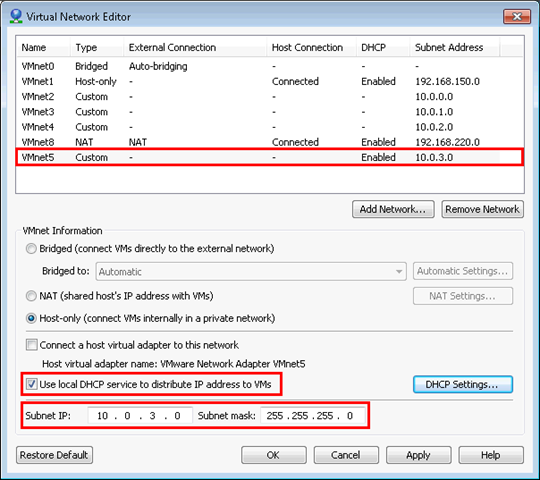
Change the DHCP Settings and fill in a valid start and end address.
Building the Ultimate vSphere Lab – Part 11: vMotion & Fault Tolerance
Next up is the creation of our vMotion interface.
Let’s take a look at vSwitch0 first:
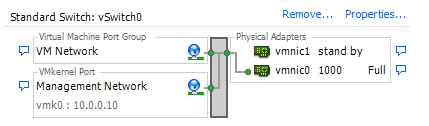
Open Properties… and remove the VM Network portgroup. Then, open the properties of the vSwitch and put both vmnic adapters as active.
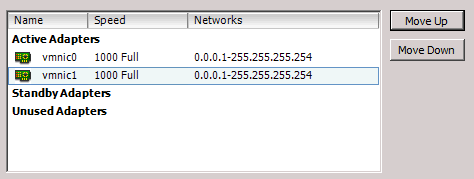
Now open the properties of the Management Network and set vmnic0 as active and vmnic1 as standby.
Building the Ultimate vSphere Lab – Part 10: Storage
We now have a cluster, but still not a usable because we don’t have Shared Storage yet. So let us add some 🙂
We will go for an iSCSI solution. This makes perfect sense since this can be virtualized perfectly. Many iSCSI appliances exist on the market today. Lefthand, UberVSA, OpenFiler, … I will however go with the easiest solution: installing a Software iSCSI Target on Windows Server.
Again, various flavors exist, but what most people don’t realize is that Microsoft has it’s own free iSCSI Target. I has all the basic functionality you need (CHAP, Snapshots, …). No replication or other advanced stuff is supported, but we don’t really need that for now.
Let’s start by downloading the goodies: http://www.microsoft.com/download/en/details.aspx?id=19867
Extract it and put it on the Shared Folder to the VMs can access it.
Now, before we install the iSCSI Software, we need to change our VM to support it. We will use our vCenter Server for Storage. If you have the resources on your PC, a dedicated VM would be better (but then, i would go for a dedicated iSCSI appliance like Lefthand, OpenFiler, …).
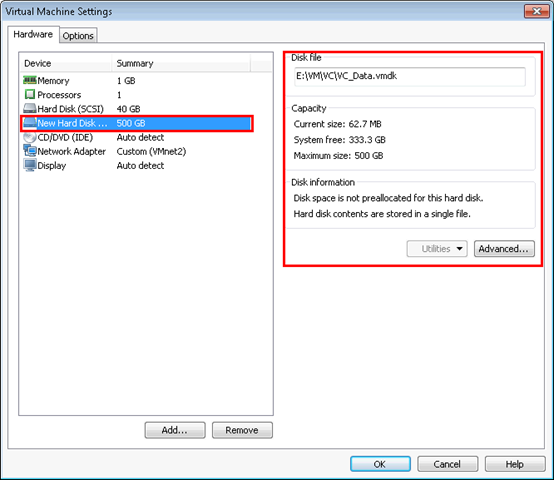
Give your vCenter VM a second Hard Disk of 500GB and put it on HDD storage.
Building the Ultimate vSphere Lab – Part 9: ESXi
Now that we have our vCenter running, it’s time to deploy our ESXi hosts.
Depending on the amount of memory you have, you can deploy as many ESXi hosts as you want. Personally (I have 16 GB), i will install 2 of them.
Start by creating a new Virtual Machine. Take Custom for the type of configuration.

Hardware Compatibility is Workstation 8.0.
 Boerlowie's Blog